
If you're familiar with iOS reverse engineering, you're probably no stranger to Tweak . This leads us to Theos . So what is Theos? Simply put, Theos is a jailbreak development toolkit. Theos is a top choice for jailbreak development tools because its biggest advantage is its simplicity. Simplicity is key; downloading, installing, compiling, and deploying Theos is relatively straightforward. Another commonly used tool in jailbreak development is iOSOpenDev, but since this article focuses on Theos, we won't go into detail about iOSOpenDev . This blog post will focus on the installation and usage of Theos.
I. Theos Configuration and Installation
Configuring and installing Theos is relatively simple; following the official steps should resolve the issue. The official Theos documentation is available at the " Official Wiki , " which provides instructions on how to install and configure Theos. This section follows the official Wiki . However, before proceeding, ensure you have Homebrew installed locally . You can use the `brew` command to install dependencies. `brew` is similar to `yum` or `apt-get` in Linux ; it's a package management tool. If you don't have Homebrew installed, please Google it to find the necessary installation instructions.
1. Install dpkg
2. Install ldid
3. Theos Installation

After downloading Theos, you need to modify the file permissions using the following command.
II. Using Theos to create, compile, install, and use tools
Now that we've set up the Theos environment, let's start using Theos to do some things. Next, we'll use Theos to create a utility, compile it, and then install it on our jailbroken phone. Let's look at these steps.
1. Configure $THEOS

2. New construction projects
After selecting a template, you will be prompted to perform a series of operations, which are similar to the steps for creating a new iOS project in Xcode.
(1) Enter the name of your project ( Project Name , required). Here, our project name is FirstTheosApplication .
(2) Enter the package name . The naming rule for the package name is generally to reverse your company's domain name and then add your project name. Here I just wrote one randomly, which is com.ludashi.firsttheosapplication below .
(3) Enter the author's name ( Author/Maintainer Name ). Here we enter Mr. LuDashi.
(4) Then, as shown in the class name prefix , we entered CE here.
After the above configuration, our project is now created.
Below is the directory structure of our created project. The `packages` folder contains files generated after compilation and packaging; the `.deb` files within it are our installation files. You can then install this package onto your jailbroken phone.
3. Preparations before compilation and packaging
Before specifying this device IP, you need to ensure that your jailbroken device has OpenSSH installed and can log in via SSH from the Mac terminal.

4. Compile
5. Pack

6. Installation
7. Effect after installation
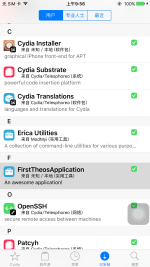
Below is the result after our project is installed. Open Cydia , select the Installed tab, and you will see the FirstTheosApplication (utility) that we just installed. We can click on it to view the information, most of which is the information we just configured. This completes our full process.
III. Creating, compiling, packaging, and installing Tweak
Next, we'll create a Tweak project, following a similar process to the one described above. We'll use `nic.pl` to create it, `make` to compile it, `make package` to package it, and `make install` to install it. Let's take a look at this process.
1. Final Result
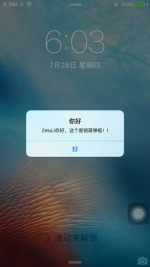
To get straight to the point, here's the effect we want to achieve. Next, we'll use Theos to create a Tweak project. Below is what our Tweak project will do: when your iPhone unlocks, it will display a pop-up window. This pop-up contains the hook code from our Tweak project . Below is the final effect we've achieved.
2. Creating a Tweak Project
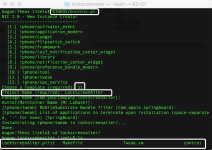
Below is the creation process for our Tweak project, similar to the project creation described above, but we've chosen the Tweak template. As shown below, we'll name this Tweak project " LockScreenAlter ," and use the default values for other configuration items. Then, navigate to our LockScreenAlter project directory, which contains the following four files.
3. Makefile
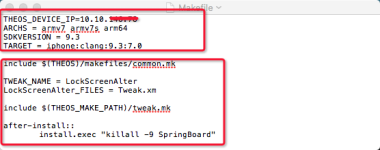
This file is similar to a configuration file, used to specify the files, frameworks, libraries, SDKs , etc., used by the project, automating the entire compilation, packaging, and installation process. Below is the content of our Makefile ; the red box below shows the default configuration after project creation, and the red box above shows the configurations we added later. These items specify the parameters required for compilation and installation, automating the process. Because my local Xcode uses the iOS 9.3 SDK, the SDKVESION specified below is 9.3.
4. Writing the Tweak.xml file
(1) Analysis before writing hook code
This analysis step is crucial because it helps you understand where your code is working. Since we need to display a pop-up on the lock screen, we need to add a hook to the corresponding lock screen page. Below is our analysis process. After browsing the system header files, we found the file `SBLockScreenManager.h` in the following path . Judging from the filename, this file is responsible for the iPhone system lock screen, so we hooked it.
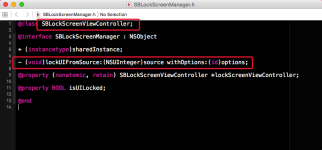
Below is the content of the header file mentioned above. From this content, we are even more convinced that the `SBLockScreenManager` class is used to manage system lock screens, because it has a field `isUILocked` indicating whether the screen is locked. The header file also contains a class method and an object method. The class method is clearly used to obtain a singleton of the class. The object method `lockUIFromSource...` is likely used for locking and unlocking the screen. Therefore, to display a pop-up on the lock screen, we need to perform the operation within the single object method of the `SBLockScreenManager` class .
(2) Implementation of hook code
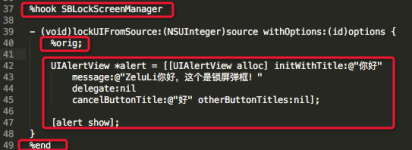
Below is all the code in Tweak.xml . It uses Logos syntax, which is relatively simple to use. `%hook` and `%end` appear in pairs . `%hook` is followed by the name of the class we want to modify; here we want to modify `SBLockScreenManager` , similar to inheritance in Objective-C. `%orig` is used to execute the original function of the modification function; this can be seen as equivalent to `super` in Objective-C syntax , similar to calling a parent class method. The code below uses only these Logos syntax elements to display a pop-up on the lock screen.

A brief introduction to commonly used Logos syntax:
5. control file
The `control` file stores basic information needed by the deb package management system and is packaged into the deb package. Below is the content of the `control` file, which stores package names, project names, versions, authors, etc., the same information seen in Cydia after installation.
6. Compile, package, and install.
The process of compiling, packaging, and installing is similar to the previous section, so I will only show the process here and will not go into too much detail.
(1) Compile using the make command
(2) Packaging: make package
(3) Install on phone: make install
7. View from Cydia
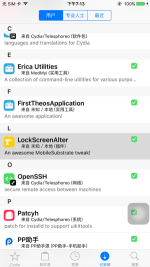
Below is a screenshot of what we saw in Cydia after successful installation . After successful installation, an Alert will pop up when you lock your screen.
I. Theos Configuration and Installation
Configuring and installing Theos is relatively simple; following the official steps should resolve the issue. The official Theos documentation is available at the " Official Wiki , " which provides instructions on how to install and configure Theos. This section follows the official Wiki . However, before proceeding, ensure you have Homebrew installed locally . You can use the `brew` command to install dependencies. `brew` is similar to `yum` or `apt-get` in Linux ; it's a package management tool. If you don't have Homebrew installed, please Google it to find the necessary installation instructions.
1. Install dpkg
dpkg is one of the tools that Theos depends on; dpkg is short for Debian Packager . We can use dpkg to create .deb files, and plugins developed for Theos will be distributed in .deb format. Therefore, I need to install dpkg before installing Theos. Here, we will use the powerful brew to complete the installation of dpkg. The specific installation process is as follows:sudo brew install dpkg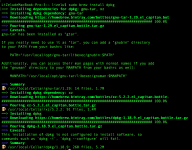
2. Install ldid
In the Theos development plugin, iOS file signing is done using the ldid tool, meaning ldid replaces Xcode's built-in Codesign . Below is the ldid installation process.sudo brew install ldid
3. Theos Installation
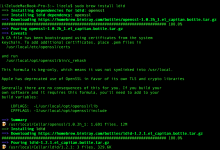
Since Theos is usually installed in the /opt/ directory, first cd to the /opt directory, and then clone it from the relevant address on GitHub. The steps are as follows (the installation process below is quite long, please be patient):git clone --recursive https://github.com/theos/theos.git
After downloading Theos, you need to modify the file permissions using the following command.
Theos installation is now complete, and you can begin your Theos journey.sudo chown(id−in)id -g) theos
II. Using Theos to create, compile, install, and use tools
Now that we've set up the Theos environment, let's start using Theos to do some things. Next, we'll use Theos to create a utility, compile it, and then install it on our jailbroken phone. Let's look at these steps.
1. Configure $THEOS
Navigate to the directory where we want to create the utility, and use `export` to define the following environment variable, as shown below. The command below is quite simple; you can think of it as using `export` to define a variable named ` THEOS` , which stores the value `/opt/theos` . The path after `THEOS` is the path where we installed Theos . If you want to use that path, simply use `$THEOS` instead. Of course, this variable is only available in the current terminal. See below.export THEOS=path to the THEOS file
2. New construction projects
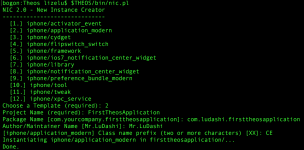
Next, we'll use Theos to create our project. Creating a project is quite simple; it involves calling the `nic.pl` command located in the `bin` directory of theos folder. The specific execution is shown below. After executing the `nic.pl` command, you'll be prompted to choose a template for your new project. Theos currently has 12 built-in templates , but you can download other templates from the internet. Since we're creating an `application_modern` type project, we'll select template 2. If you want to create a tweaked project , you can select template 11. Below, we've selected the second template.$THEOS/bin/nic.pl
After selecting a template, you will be prompted to perform a series of operations, which are similar to the steps for creating a new iOS project in Xcode.
(1) Enter the name of your project ( Project Name , required). Here, our project name is FirstTheosApplication .
(2) Enter the package name . The naming rule for the package name is generally to reverse your company's domain name and then add your project name. Here I just wrote one randomly, which is com.ludashi.firsttheosapplication below .
(3) Enter the author's name ( Author/Maintainer Name ). Here we enter Mr. LuDashi.
(4) Then, as shown in the class name prefix , we entered CE here.
After the above configuration, our project is now created.
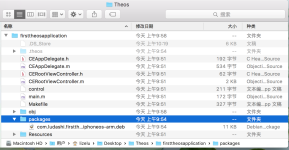
Below is the directory structure of our created project. The `packages` folder contains files generated after compilation and packaging; the `.deb` files within it are our installation files. You can then install this package onto your jailbroken phone.
3. Preparations before compilation and packaging
Next, we need to perform some preparatory work before compiling and packaging. SDKVERSION is the SDK used during project compilation. Since our Xcode installation uses SDK 9.3, we know that SDKVERSION is 9.3. After specifying the required SDK, we need to specify the IP address of the device where the packaged file will be installed, using THEOS_DEVICE_IP . The IP address below is the IP address of a jailbroken phone.export SDKVERSION=9.3
export THEOS_DEVICE_IP=ios_device_ip
Before specifying this device IP, you need to ensure that your jailbroken device has OpenSSH installed and can log in via SSH from the Mac terminal.
4. Compile
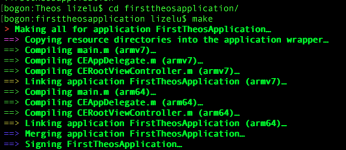
After completing the pre-compilation preparations, the next step is to compile the project we just created. First, navigate to our firsttheosapplication directory and execute the make command to compile, as shown below.make
5. Pack
After compilation, we need to package the project so that it can be installed on our jailbroken devices. Below is the command to package the project using `make package` . After packaging, an installation package with the .deb extension will be generated .make package
6. Installation
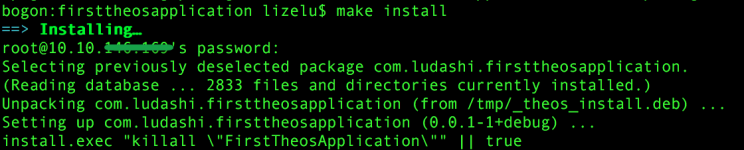
Install the package onto the jailbroken device. Since we've already configured the jailbroken device's IP address and ensured it can be connected via SSH, we can directly run the `make install` command to install the project. During the installation process, you'll be prompted to enter the SSH password for the device. After entering it, a message indicating successful installation will appear, as shown below.make install
7. Effect after installation
Below is the result after our project is installed. Open Cydia , select the Installed tab, and you will see the FirstTheosApplication (utility) that we just installed. We can click on it to view the information, most of which is the information we just configured. This completes our full process.
III. Creating, compiling, packaging, and installing Tweak
Next, we'll create a Tweak project, following a similar process to the one described above. We'll use `nic.pl` to create it, `make` to compile it, `make package` to package it, and `make install` to install it. Let's take a look at this process.
1. Final Result
To get straight to the point, here's the effect we want to achieve. Next, we'll use Theos to create a Tweak project. Below is what our Tweak project will do: when your iPhone unlocks, it will display a pop-up window. This pop-up contains the hook code from our Tweak project . Below is the final effect we've achieved.
2. Creating a Tweak Project
Below is the creation process for our Tweak project, similar to the project creation described above, but we've chosen the Tweak template. As shown below, we'll name this Tweak project " LockScreenAlter ," and use the default values for other configuration items. Then, navigate to our LockScreenAlter project directory, which contains the following four files.
3. Makefile
This file is similar to a configuration file, used to specify the files, frameworks, libraries, SDKs , etc., used by the project, automating the entire compilation, packaging, and installation process. Below is the content of our Makefile ; the red box below shows the default configuration after project creation, and the red box above shows the configurations we added later. These items specify the parameters required for compilation and installation, automating the process. Because my local Xcode uses the iOS 9.3 SDK, the SDKVESION specified below is 9.3.
4. Writing the Tweak.xml file
(1) Analysis before writing hook code
This analysis step is crucial because it helps you understand where your code is working. Since we need to display a pop-up on the lock screen, we need to add a hook to the corresponding lock screen page. Below is our analysis process. After browsing the system header files, we found the file `SBLockScreenManager.h` in the following path . Judging from the filename, this file is responsible for the iPhone system lock screen, so we hooked it.
Below is the content of the header file mentioned above. From this content, we are even more convinced that the `SBLockScreenManager` class is used to manage system lock screens, because it has a field `isUILocked` indicating whether the screen is locked. The header file also contains a class method and an object method. The class method is clearly used to obtain a singleton of the class. The object method `lockUIFromSource...` is likely used for locking and unlocking the screen. Therefore, to display a pop-up on the lock screen, we need to perform the operation within the single object method of the `SBLockScreenManager` class .
(2) Implementation of hook code
Below is all the code in Tweak.xml . It uses Logos syntax, which is relatively simple to use. `%hook` and `%end` appear in pairs . `%hook` is followed by the name of the class we want to modify; here we want to modify `SBLockScreenManager` , similar to inheritance in Objective-C. `%orig` is used to execute the original function of the modification function; this can be seen as equivalent to `super` in Objective-C syntax , similar to calling a parent class method. The code below uses only these Logos syntax elements to display a pop-up on the lock screen.
A brief introduction to commonly used Logos syntax:
- %hook specifies the class name to be hooked, ending with %end.
- %log is used to print logs, inputting information into syslog, such as %log((NSString *)@"ZeluLi")
- %orig executes the original code of the hooked function, similar to the functionality of super.method.
- The `%group` directive is used to group `%hook`s. `%group` is followed by the group name and must end with `%end`. It can contain multiple `%hook`s.
- The %init directive is used to initialize a %group. A group only becomes effective after it has been initialized, and init must be executed within a hook.
- The constructor of the `%ctor tweak` is used for initialization. If not explicitly defined, Theos will automatically generate a `%ctor` and call `%init(_ungrouped)` within it. For example: `%ctor { %init(_ungrouped)}`
- The `%new` directive is used to add a new function to an existing class. It is the same as `class_addMethod` in the Runtime.
- The %c command is used to retrieve the name of a class, similar to objc_getClass.
5. control file
The `control` file stores basic information needed by the deb package management system and is packaged into the deb package. Below is the content of the `control` file, which stores package names, project names, versions, authors, etc., the same information seen in Cydia after installation.
6. Compile, package, and install.
The process of compiling, packaging, and installing is similar to the previous section, so I will only show the process here and will not go into too much detail.
(1) Compile using the make command
(2) Packaging: make package
(3) Install on phone: make install
7. View from Cydia
Below is a screenshot of what we saw in Cydia after successful installation . After successful installation, an Alert will pop up when you lock your screen.