
Today's blog post is relatively simple, but still quite important. I often get asked privately on QQ how to use Reveal to view the UI layer of downloaded apps in the App Store, so I'll dedicate this post to a unified explanation. Although there's plenty of information online, it's still necessary to summarize it in detail.
As the saying goes, "A skilled craftsman must first sharpen his tools." In previous blog posts, I've used the powerful analysis tool Reveal more than once. We've used it to examine the UI hierarchy of our own apps and apps downloaded from the App Store, with excellent results. In reverse engineering, Reveal isn't just for viewing the UI hierarchy; it can help you pinpoint problems. For example, if you want to display an Alert on a specific page in an app, Reveal can easily help you find that page and the relevant classes.
Okay, enough chit-chat. Today's blog topic is how to configure and use Reveal in a jailbroken environment to view an app's UI hierarchy. Reveal for Mac can be downloaded from the official Reveal website, but it's only a 30-day trial. You can also download a cracked version of Reveal directly online. If you want to do something more interesting, you can use Hopper to crack the official Reveal yourself. There are tutorials online on using Hopper to modify Reveal's assembly and crack it; I've personally tested them and they work. If you don't want to use Hopper to crack Reveal, please go to " Reveeal Crack Link , " which works in the current latest version 1.6.3 . The Reveal 1.6.3 used in this blog post is cracked using Hopper . However, that's not today's topic; today's topic is how to use Reveal.
Of course, the content discussed in today's blog was done on a jailbroken phone. For how to use Reveal to view the UI hierarchy of your own app on a non-jailbroken phone, please Google it yourself ; I won't go into too much detail here.
1. Configure Reveal on the jailbroken device
The following content is based on operations on a jailbroken device, with the device's system version being the jailbroken iOS 9.2.1 .
1. Reveal Loader Installation
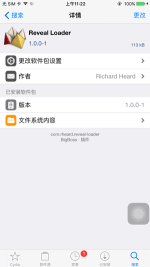
First, download Cydia to your jailbroken device . Then, search for Reveal Loader and install it. The result after installation is shown below. This step is quite simple; just restart SpringBoard after installation .
2. Import libReveal.dylib
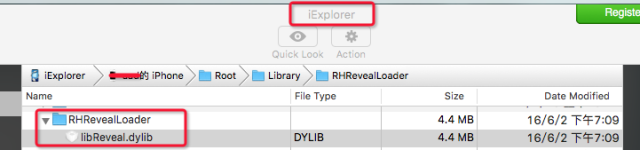
This step is also quite crucial. After installing the Reveal Loader mentioned above, please check if there is a folder named /Library/RHRevealLoader and make sure that there is a file named libReveal.dylib in that folder . If there is, please skip this step. If not, then continue reading.
(1) Tools required to manipulate files on jailbroken devices
This section requires manipulating the file system on the jailbroken device and importing folders from the Mac onto the device. While you can use OpenSSH to connect to your device, the visualization tool below is more intuitive for importing files from the Mac into the corresponding folders on the jailbroken device.
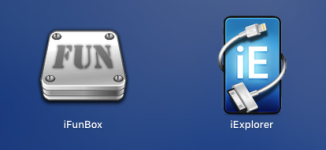
Below are two tools I have installed locally. Either one can manipulate the file system of an iOS device, but iExplorer is more powerful. iExplorer can view backup files for all iOS devices on your Mac, including backup files for non-jailbroken devices.
(2)libReveal.dylib
The Reveal library on our Mac comes with two libraries: libReveal.dylib and Reveal.framework . The latter is used on non-jailbroken devices, but this blog post uses the former. These two files are located in the iOS Library within Reveal. You can find them by going to Reveal menu -> Help -> Show Reveal Library in Finder -> iOS Library . However, for this blog post, we only need the libReveal.dylib file.

After locating the libReveal.dylib file mentioned above , use IExplorer to copy it to the corresponding directory on your device, as shown below.
That concludes our Reveal configuration. The next step is to use Reveal to perform some tasks.
II. Use of Reveal
1. Select the app that can be Revealed on your device.
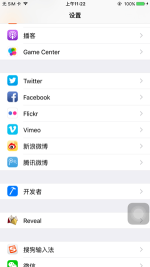
After installing Reveal Loader on a jailbroken device , you can find the Reveal configuration option in the settings. In this option, you can select the app to be revealed. Of course, for jailbroken phones, all apps installed on the phone can be revealed, including those downloaded from the App Store and those pre-installed on iOS. See below:
2. Check the UI hierarchy of the system app "Stocks".
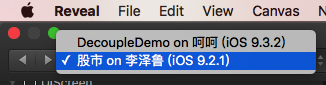
The Reveal configuration is now complete. Next, it's time to use Reveal. On a Mac, Reveal doesn't require a USB connection to view the UI hierarchy of apps on the device, but your iOS device and Mac must be on the same local network. The screenshot below shows me using Reveal. (DecoupleDemo on iOS 9.3.2). This device belongs to a colleague; it's not jailbroken, but his app uses the Reveal.framework package, which is why I can see it here. Below is my jailbroken device. The "Stocks" app is a built-in iOS app. Let's see how to use Reveal on a jailbroken device to view the UI hierarchy of third-party apps.
In the screenshot above, clicking the "Stocks" link at the bottom will reveal the "Stocks" app. Below is a UI hierarchy diagram of the "Stocks" app.
After following the steps above, Reveal should work properly. As for how to maximize Reveal's functionality, that depends on the user.
As the saying goes, "A skilled craftsman must first sharpen his tools." In previous blog posts, I've used the powerful analysis tool Reveal more than once. We've used it to examine the UI hierarchy of our own apps and apps downloaded from the App Store, with excellent results. In reverse engineering, Reveal isn't just for viewing the UI hierarchy; it can help you pinpoint problems. For example, if you want to display an Alert on a specific page in an app, Reveal can easily help you find that page and the relevant classes.
Okay, enough chit-chat. Today's blog topic is how to configure and use Reveal in a jailbroken environment to view an app's UI hierarchy. Reveal for Mac can be downloaded from the official Reveal website, but it's only a 30-day trial. You can also download a cracked version of Reveal directly online. If you want to do something more interesting, you can use Hopper to crack the official Reveal yourself. There are tutorials online on using Hopper to modify Reveal's assembly and crack it; I've personally tested them and they work. If you don't want to use Hopper to crack Reveal, please go to " Reveeal Crack Link , " which works in the current latest version 1.6.3 . The Reveal 1.6.3 used in this blog post is cracked using Hopper . However, that's not today's topic; today's topic is how to use Reveal.
Of course, the content discussed in today's blog was done on a jailbroken phone. For how to use Reveal to view the UI hierarchy of your own app on a non-jailbroken phone, please Google it yourself ; I won't go into too much detail here.
1. Configure Reveal on the jailbroken device
The following content is based on operations on a jailbroken device, with the device's system version being the jailbroken iOS 9.2.1 .
1. Reveal Loader Installation
First, download Cydia to your jailbroken device . Then, search for Reveal Loader and install it. The result after installation is shown below. This step is quite simple; just restart SpringBoard after installation .
2. Import libReveal.dylib
This step is also quite crucial. After installing the Reveal Loader mentioned above, please check if there is a folder named /Library/RHRevealLoader and make sure that there is a file named libReveal.dylib in that folder . If there is, please skip this step. If not, then continue reading.
(1) Tools required to manipulate files on jailbroken devices
This section requires manipulating the file system on the jailbroken device and importing folders from the Mac onto the device. While you can use OpenSSH to connect to your device, the visualization tool below is more intuitive for importing files from the Mac into the corresponding folders on the jailbroken device.
Below are two tools I have installed locally. Either one can manipulate the file system of an iOS device, but iExplorer is more powerful. iExplorer can view backup files for all iOS devices on your Mac, including backup files for non-jailbroken devices.
(2)libReveal.dylib
The Reveal library on our Mac comes with two libraries: libReveal.dylib and Reveal.framework . The latter is used on non-jailbroken devices, but this blog post uses the former. These two files are located in the iOS Library within Reveal. You can find them by going to Reveal menu -> Help -> Show Reveal Library in Finder -> iOS Library . However, for this blog post, we only need the libReveal.dylib file.
After locating the libReveal.dylib file mentioned above , use IExplorer to copy it to the corresponding directory on your device, as shown below.
That concludes our Reveal configuration. The next step is to use Reveal to perform some tasks.
II. Use of Reveal
1. Select the app that can be Revealed on your device.
After installing Reveal Loader on a jailbroken device , you can find the Reveal configuration option in the settings. In this option, you can select the app to be revealed. Of course, for jailbroken phones, all apps installed on the phone can be revealed, including those downloaded from the App Store and those pre-installed on iOS. See below:
2. Check the UI hierarchy of the system app "Stocks".
The Reveal configuration is now complete. Next, it's time to use Reveal. On a Mac, Reveal doesn't require a USB connection to view the UI hierarchy of apps on the device, but your iOS device and Mac must be on the same local network. The screenshot below shows me using Reveal. (DecoupleDemo on iOS 9.3.2). This device belongs to a colleague; it's not jailbroken, but his app uses the Reveal.framework package, which is why I can see it here. Below is my jailbroken device. The "Stocks" app is a built-in iOS app. Let's see how to use Reveal on a jailbroken device to view the UI hierarchy of third-party apps.
In the screenshot above, clicking the "Stocks" link at the bottom will reveal the "Stocks" app. Below is a UI hierarchy diagram of the "Stocks" app.
After following the steps above, Reveal should work properly. As for how to maximize Reveal's functionality, that depends on the user.